Clear the right cache, not every cache
Help4 CDN 0.2.1 can clear one page, selected paths, the homepage, or the full assigned domain across its POPs. Automatic invalidation handles normal publishing while compatible WordPress cache layers stay coordinated.
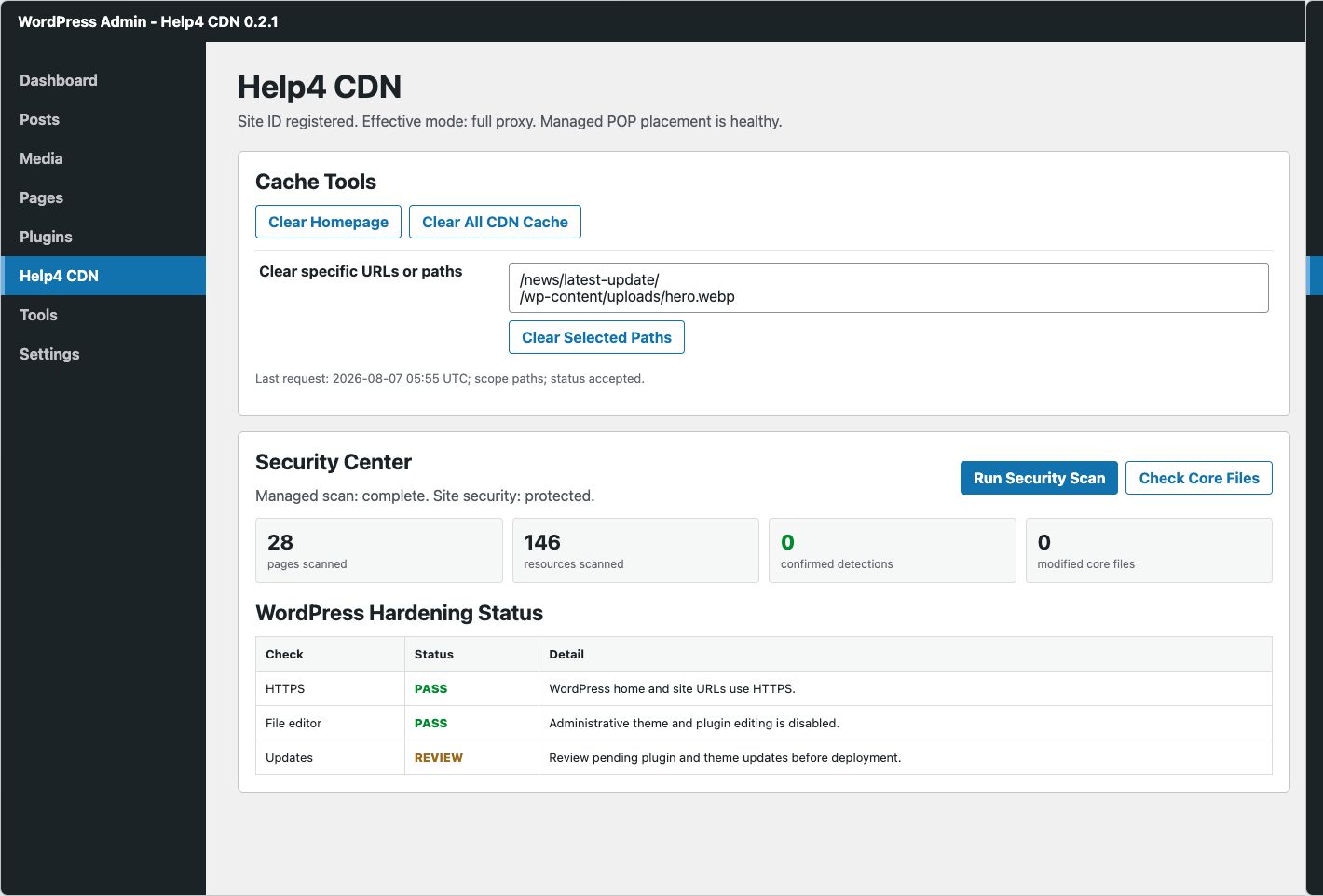
Choose the smallest useful clear
| What changed | Use | Why |
|---|---|---|
| One public page or post | Clear Current Page in the admin bar, or enter its path | Removes only the affected public object and related normalized variants. |
| Homepage blocks or featured content | Clear Homepage | Targets / without evicting unrelated assets. |
| Several known URLs or files | Clear Selected Paths | Keeps the purge site-scoped and preserves unrelated cache. |
| Theme, navigation, global layout, or broad plugin change | Clear All CDN Cache | Coordinates the assigned POPs and compatible origin cache layers. |
| Routine publish, delete, comment, term, or menu update | Automatic cache management | The plugin computes affected public URLs after WordPress finishes the change. |
Clear paths from Cache Tools
- Open Help4 CDN.
Sign in as a WordPress administrator and selectHelp4 CDNin the admin sidebar. - Confirm the site is registered.
The cache buttons remain disabled until the page shows a Help4 site ID. - Enter local paths only.
Use one path per line, such as/news/update/or/wp-content/uploads/photo.webp. Same-site absolute URLs are accepted and normalized. - Submit the narrow clear.
SelectClear Selected Paths. The status line records the request time, scope, and result. - Verify the public response.
Reload in a private window and confirm the changed text, image, CSS, or script is current.
Use the admin-bar shortcuts
When an administrator views the public site, the WordPress admin bar exposes quick Help4 cache actions. Use Clear Current Page after editing the page you are viewing. Use the full clear only for changes that affect many routes.
manage_options capability and a valid WordPress nonce. Visitors and unauthenticated callers cannot trigger these administrator actions.Automatic invalidation
Keep Automatically clear affected edge cache after WordPress content changes enabled for normal publishing. The plugin responds to:
Posts, pages, custom post status changes, attachments, comments, feeds, archives, and related public URLs.
Categories, tags, taxonomies, navigation menus, theme switches, and Customizer saves.
Plugin activation, deactivation, deletion, upgrades, theme changes, and Autoptimize cache changes.
Purges remain within the registered Help4 site and never turn private WordPress responses into public cache objects.
Coordinate origin caches
A full clear also calls supported local cache APIs when they are active. Current integrations include:
- WordPress persistent object cache
- W3 Total Cache
- WP Rocket
- WP Super Cache
- Autoptimize
- LiteSpeed Cache
- SiteGround Optimizer
The Detected software and cache stack section shows what the plugin found and recommends either Help4-managed browser headers or origin-header passthrough.
Set browser cache policy safely
Custom CDN header
Set a bounded max-age for assets served from the Help4 delivery hostname. Use immutable only for filenames that change when their contents change.
Respect origin
Use the origin's Cache-Control when an existing cache plugin or application already emits deliberate browser policy.
Automate a deployment clear
Use the authenticated JSON endpoint when a deployment tool needs to clear known paths. Store credentials in the deployment secret store, never in source code or a public command history.
curl -sS -X POST "https://example.com/wp-json/help4-cdn/v1/cache/refresh" \
  -H "Content-Type: application/json" \
  -H "X-Help4-Api-Key: YOUR_HELP4_KEY" \
  -H "X-Help4-Api-Secret: YOUR_HELP4_SECRET" \
  -d '{"scope":"paths","paths":["/","/assets/app.css"],"reason":"deploy"}'
See the JSON cache refresh tutorial for request shapes and error handling.
Verify more than HTTP 200
- Check the visible change.
Confirm the expected heading, image, version string, or page structure is present. - Inspect response headers.
Confirm the expectedX-Help4-Pop, cache state, policy, proxy mode, and content type. - Compare the body when consistency matters.
Use a checksum or a known content marker across the affected POPs; a generic error page can also return HTTP 200. - Test private routes separately.
Login, cart, checkout, account, and administration routes should stay uncached.
curl -sSI https://example.com/changed-page/
curl -sS https://example.com/changed-page/ | openssl dgst -sha256
When a page still looks stale
| Symptom | Check | Resolution |
|---|---|---|
| One URL is old | Path, query string, canonical host | Clear that exact public path and its canonical equivalent. |
| HTML is new but CSS is old | Versioned stylesheet URL and origin cache | Clear the stylesheet path or publish a new versioned filename. |
| POP and origin disagree | Compatible cache plugin and object cache | Use the full clear once, then verify both body and headers. |
| Button is disabled | Help4 site ID and entitlement | Save valid credentials and finish domain assignment or DNS validation. |
| Purge reports an error | Registered domain, credentials, and path scope | Correct the site identity and retry the narrow request before escalating. |