Install the Help4 CDN plugin
Use plugin-first setup when you want Help4 CDN asset rewriting, cache control, security scanning, WAF visibility, POP selection, and virtual-patching intelligence without moving the whole DNS zone immediately.
0.2.2. Download the immutable versioned ZIP or use the current-release alias. The screenshots below show the 0.2.1 interface; 0.2.2 adds the tier-aware DNS and hosting-origin settings.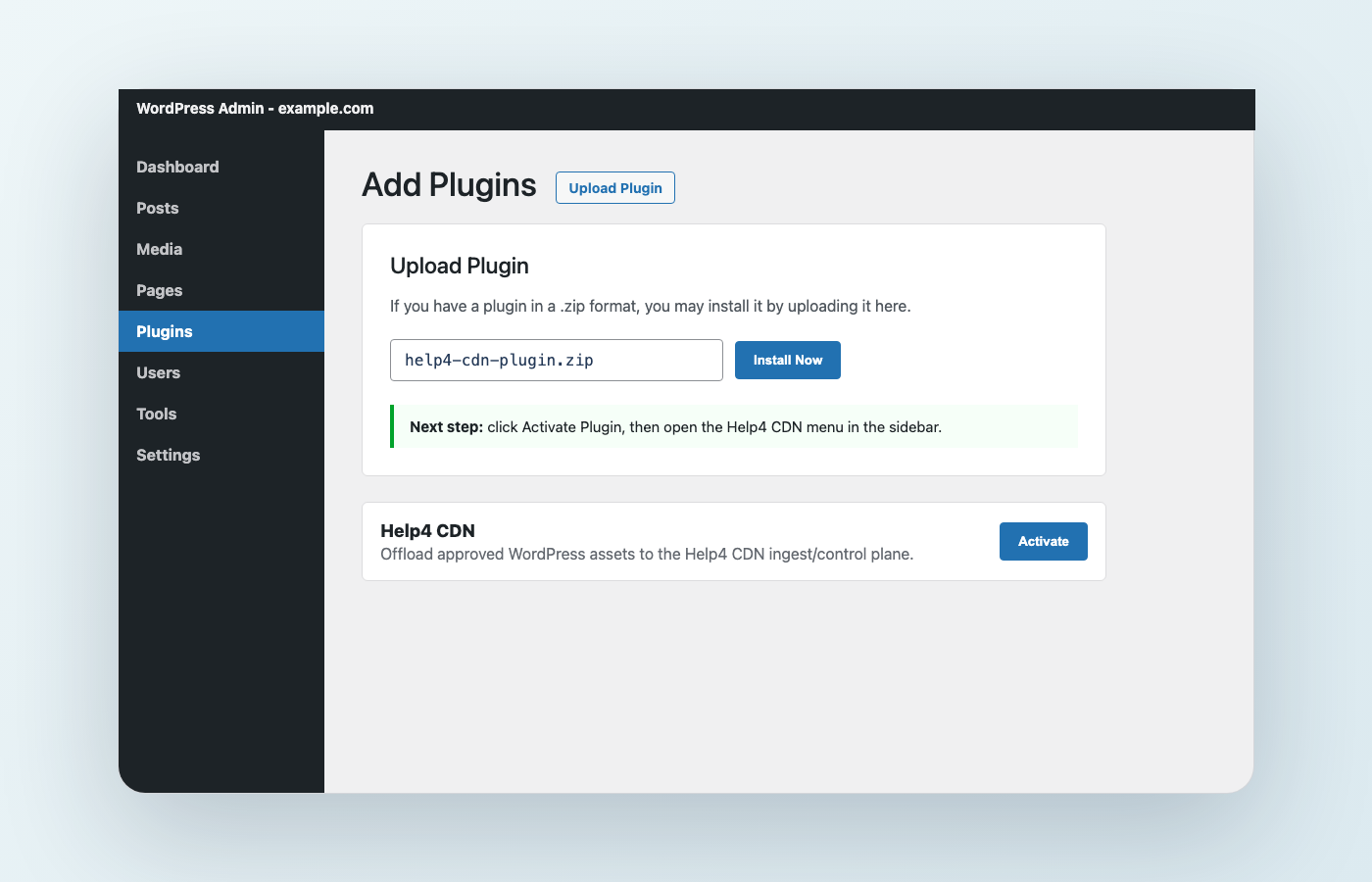
Complete WordPress plugin tutorials
Before you start
You need
- WordPress admin access.
- A Help4 CDN/WAF service or onboarding invite.
- Help4 API key and Help4 API secret.
- Permission to upload plugins.
Recommended
- Take a quick site backup first.
- Check that the site is on WordPress 6.5 or newer.
- Use PHP 8.3 or newer.
- Keep a browser tab open to test the public site after saving.
Install the plugin
- Download the ZIP.
Use the Help4 CDN plugin download and keep it zipped. - Open WordPress admin.
Go toPlugins, thenAdd New. - Choose Upload Plugin.
Selecthelp4-cdn-plugin.zip, then clickInstall Now. - Activate Help4 CDN.
After install, clickActivate Plugin. AHelp4 CDNmenu item appears in the admin sidebar.
Configure Help4 CDN
Open Help4 CDN in WordPress admin and fill in the connection fields.
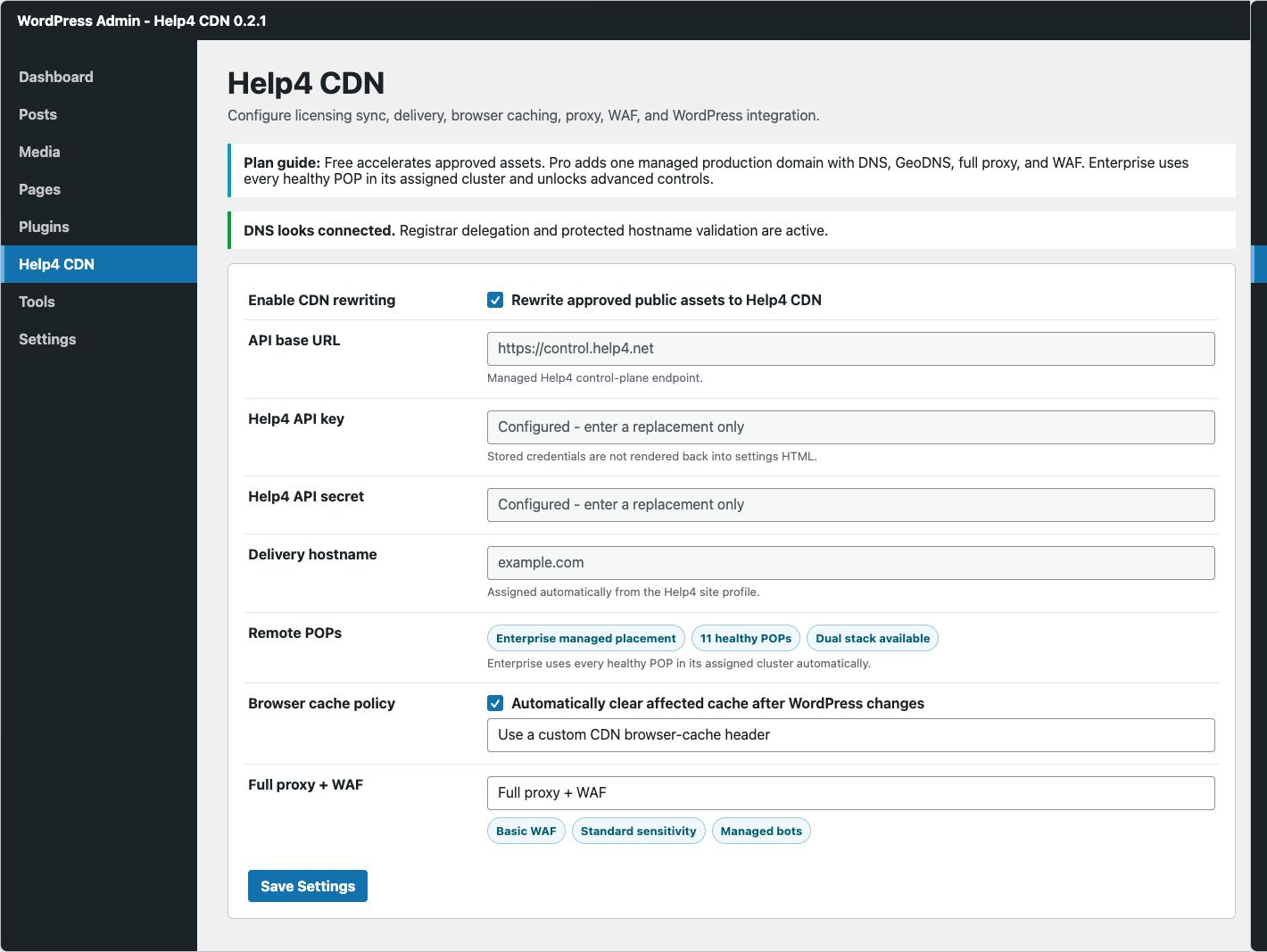
- Enable CDN rewriting.
CheckEnable CDN rewritingwhen you are ready for approved assets to use the Help4 delivery hostname. - Confirm the API base URL.
Use the Help4 control-plane URL from your service handoff. If Help4 gave you a managed value, leave it as provided. - Add API key and secret.
PasteHelp4 API keyandHelp4 API secret. Leave the legacy bearer token blank unless Help4 specifically tells you to use it. - Review the delivery hostname.
Free uses an assigned Help4 asset hostname. Pro uses DET01 A records for the assigned hostname and www, while Enterprise uses Help4 GeoDNS. Both paid tiers include all eligible asset POPs. - Confirm Hosting origin IP addresses.
Use the real hosting IP from your service settings, not a CDN IP returned by public DNS. The plugin reads an authenticated origin profile when supplied; if none exists, enter the hosting IP explicitly. Shared hosting IPs do not determine your paid entitlement. - Select coverage.
Choose pages, posts, products, asset classes, and any available POP city coverage for your plan. - Save Changes.
The plugin syncs the site profile, cache policy, and routing preference back to Help4.
Clear and automate cache
Open Help4 CDN, then use Cache Tools to clear the homepage, the current page, selected paths, or the whole assigned domain. The WordPress admin bar also provides quick cache actions to administrators.
- Use the narrowest clear.
Clear the affected page or path after a focused edit. Use a full-domain clear after a theme, menu, plugin, or site-wide layout change. - Keep automatic invalidation enabled.
Publishing, deleting, commenting, taxonomy changes, menu edits, and supported optimization changes clear the related public URLs automatically. - Let Help4 coordinate compatible caches.
A full clear also flushes supported WordPress object and page-cache layers so the origin and assigned POPs do not disagree.
Use Security Center
Open Help4 CDN, then Security Center to run a managed website scan, verify WordPress core files against official checksums, review recent administrative activity, and inspect site-scoped CDN/WAF events.
All plans
- WordPress core integrity verification.
- Login, user, theme, and plugin activity history.
- Security-hardening status checks.
- Site-scoped scan and event visibility when provisioned.
Entitled controls
- WAF sensitivity and managed bot or under-attack mode.
- Edge HTTPS and canonical security headers.
- Enterprise IP, country, ASN, user-agent, and path access rules.
- HTTP/2, gzip, Brotli, and transport-policy status.
Test after saving
- Load the home page in a private browser window.
- Open browser developer tools and check an image, CSS, or JS request.
- Confirm approved assets use the Help4 delivery hostname.
- Check that admin pages still load normally.
- Run a cache refresh after publishing a small test change.
- Check Help4 network status if a POP appears unavailable.
Optional command-line check
curl -I https://example.com/wp-content/uploads/example-image.jpgLook for Help4/CDN headers and the expected delivery hostname. Header names can vary by plan and proxy mode.
Clear cache with JSON
The plugin supports JSON-first cache refresh calls for W3 Total Cache and custom deploy tools.
curl -sS -X POST "https://example.com/wp-json/help4-cdn/v1/cache/refresh" \
  -H "Content-Type: application/json" \
  -H "X-Help4-Api-Key: YOUR_HELP4_KEY" \
  -H "X-Help4-Api-Secret: YOUR_HELP4_SECRET" \
  -d '{"scope":"paths","paths":["/"],"reason":"content-update"}'
For full details, use the JSON cache refresh tutorial.
Troubleshooting
| Problem | Likely cause | Fix |
|---|---|---|
| Upload fails. | WordPress upload limit or wrong ZIP structure. | Use the Help4 ZIP download and increase the WordPress/PHP upload limit if needed. |
| Help4 CDN menu does not appear. | Plugin was installed but not activated, or the account lacks admin permission. | Activate the plugin and confirm the logged-in user can manage options. |
| Delivery hostname is blank. | The site has not synced with Help4 yet. | Check API key/secret, save again, then ask Help4 to verify the service profile. |
| Assets still load from origin. | Rewriting is disabled or no content/asset classes are selected. | Enable rewriting and select the pages/posts/products or asset classes that should use CDN. |
| A cache clear reports an error. | The site entitlement is pending, credentials are invalid, or the control plane rejected the requested scope. | Confirm the registered domain and credentials, then retry the narrow path clear before using a full clear. |
| Security scan is unavailable. | The domain is not yet provisioned for managed scanning. | Finish domain assignment and DNS validation; local WordPress integrity checks remain available. |
| WAF controls are disabled. | The site is not on a Pro/Enterprise full-proxy plan or paid domain validation has not passed. | Use static CDN mode or upgrade/validate before enabling full proxy + WAF. |
Ready for full DNS coverage?
After plugin-first testing, you can move the whole domain to Help4 nameservers for DNS-managed CDN routing, full-site proxying, WAF coverage, and virtual patching.