Operate Help4 security controls safely
The Help4 CDN Security Center combines managed website scanning, official WordPress core checksums, local administration activity, site-scoped WAF events, and entitled edge controls. It reports evidence without silently rewriting WordPress files.
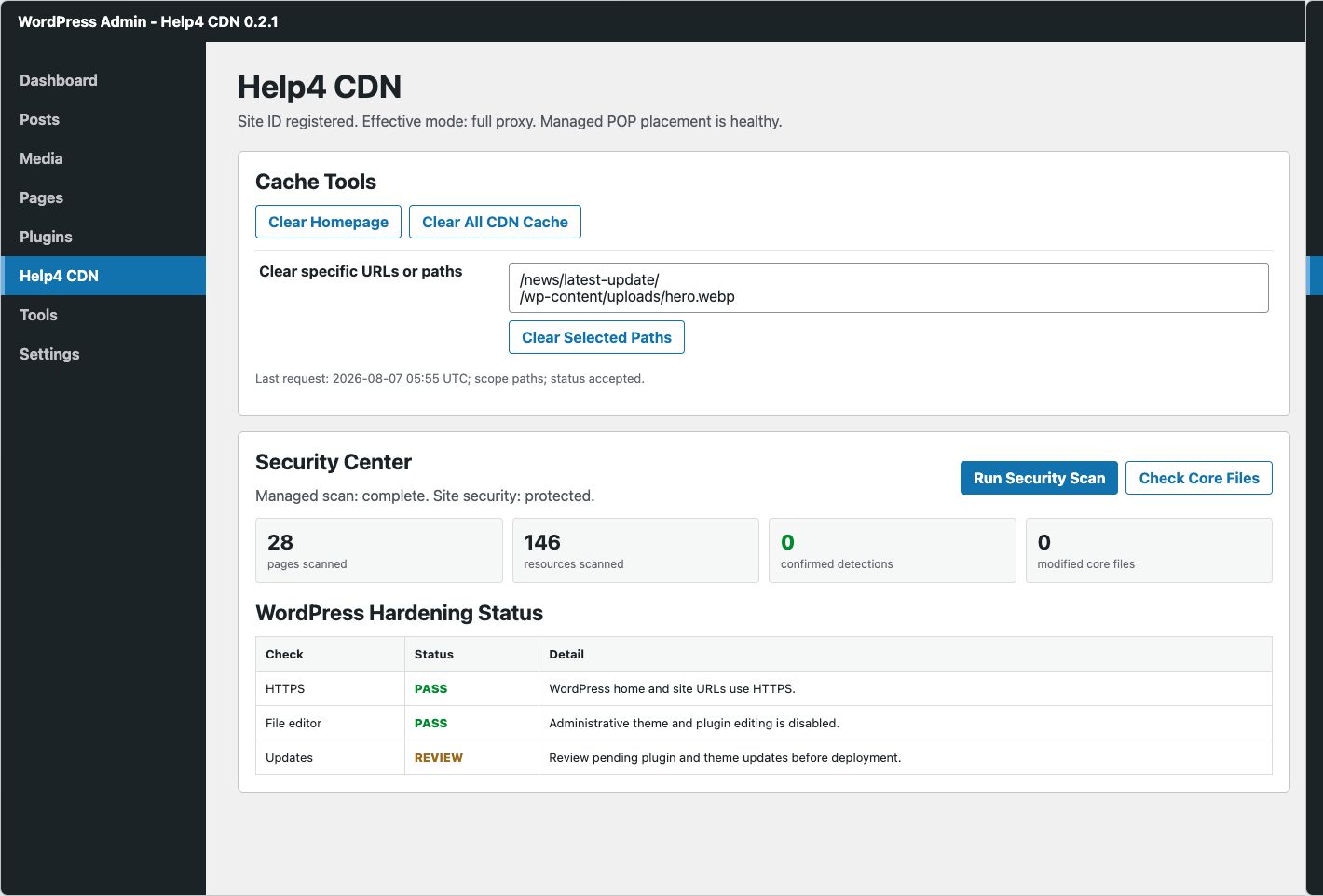
Start with Security Center
- Open Help4 CDN.
Use a WordPress administrator account with themanage_optionscapability. - Read the current state first.
Review managed scan status, site security state, last completed time, pages/resources scanned, detections, and warnings. - Run Security Scan.
The button queues a managed Help4 website scan when the registered domain is eligible. - Check Core Files.
The plugin compares installed WordPress core files with official checksums for that WordPress release. - Review evidence.
Use the hardening table, WordPress activity table, and CDN/WAF event table before changing policy.
Interpret scan and integrity results
| Result | Meaning | Next action |
|---|---|---|
| Confirmed detection | The managed scanner matched evidence strong enough to classify as a detection. | Preserve evidence, take a backup if safe, and follow the incident response path. Do not delete files blindly. |
| Warning | The scan found a condition requiring review but not enough evidence for a confirmed malware classification. | Inspect the listed route or resource and compare it with the expected application state. |
| Modified core file | A WordPress core file does not match the official checksum. | Confirm whether it is an unauthorized edit, then replace core from the matching official release after backup. |
| Missing core file | An expected WordPress core file is absent. | Check deployment history and restore from the matching official release if required. |
| Unexpected PHP | PHP appeared in a core area where the checksum inventory did not expect it. | Treat as high priority and inspect without executing the file. |
Use the activity views
WordPress activity
Review authentication, user, theme, and plugin administration events. Compare the time, event, username, source, and message with approved work.
CDN/WAF activity
Review site-scoped edge events with timestamp, severity, event type, and sanitized message. Use the Help4 dashboard for broader fleet analytics.
Select full proxy and WAF mode
Pro and Enterprise domains can request full proxy after the paid domain is assigned and hostname validation passes. The page shows both the requested and effective mode; do not assume a saved selection is active until the effective status confirms it.
| Control | Use | Operational guidance |
|---|---|---|
| Static CDN only | Rewrites selected public assets without placing the whole website behind the WAF. | Use before DNS/full-proxy validation or when only asset acceleration is needed. |
| Full proxy + WAF | Routes eligible website traffic through Help4 proxy and WAF controls. | Activate only after DNS, TLS, origin, login, callback, and form validation. |
| Basic challenge + filtering | Normal managed WAF operation. | Use as the routine protected mode when available to the plan. |
| Strict challenge + filtering | Higher-friction filtering for elevated risk. | Canary login, forms, APIs, payment flows, and mobile applications before broad use. |
| WAF sensitivity | Low, standard, or high inspection sensitivity. | Start at standard. Raise only with evidence and test legitimate workflows. |
Choose bot protection deliberately
No Help4 browser challenge. Managed WAF rules can still operate according to the selected WAF mode.
Routine automated-request filtering with lower visitor friction.
Uses a first-party browser challenge for traffic that needs stronger verification.
Temporary highest-friction browser challenge for a current application-layer attack, not a normal permanent setting.
Configure canonical edge headers
- HTTPS redirect: enable after HTTPS works on every required hostname.
- HSTS: start without preload or subdomains unless every included hostname is permanently HTTPS-ready.
- Frame policy: use
SAMEORIGINfor normal WordPress pages; reserveDENYfor specifically designated sensitive surfaces. - Referrer, COOP, and CORP: check embedded media, OAuth, external checkout, and application integrations.
- CSP and Permissions-Policy: inventory real script, style, image, frame, font, media, and connection sources before enforcing.
Use Enterprise access controls
Enterprise can define IP, country, ASN, User-Agent, and path allow/block lists. Enter one value per line and use the smallest rule that matches the intended traffic.
- Record the current policy.
Keep a rollback copy and verify an independent administrator path. - Add required allow rules first.
Preserve administrator, monitoring, origin, API, callback, and known integration access. - Keep the default action at allow for ordinary deployments.
Use block-by-default only for a deliberately closed application with a complete allowlist. - Add one block class at a time.
Save, verify, and inspect events before adding another dimension. - Test from outside the allowlisted network.
Confirm the block works without locking out legitimate workflows.
Transport optimization
HTTP/2 remains required. Automatic mode lets Help4 negotiate Brotli or gzip and select a safe minimum response size. Enterprise manual override can choose custom gzip/Brotli behavior when an application requires it.
Respond to a real alert
- Preserve the event and time window.
Record the affected site, route class, POP, status, and sanitized evidence. - Check customer impact.
Verify rendered pages and application workflows, not only HTTP status. - Contain narrowly.
Use a focused WAF, bot, path, IP, ASN, or access control when the evidence supports it. - Verify recovery.
Check public content, login, forms, callbacks, cache, origin, and routing before relaxing temporary controls. - Keep local evidence.
Use Help4 operations reporting for the verbose timeline and client communication for concise confirmed impact.
Continue with the configuration and troubleshooting guide or return to cache controls.